
CONNECT FIRESTICK TO WI-FI
Connect a Firestick to Wi-Fi — With or Without the Remote.
Get your Fire TV online in a few steps, and learn how Remote for Fire TV lets you reach the network settings from your phone when the hardware remote is not around.
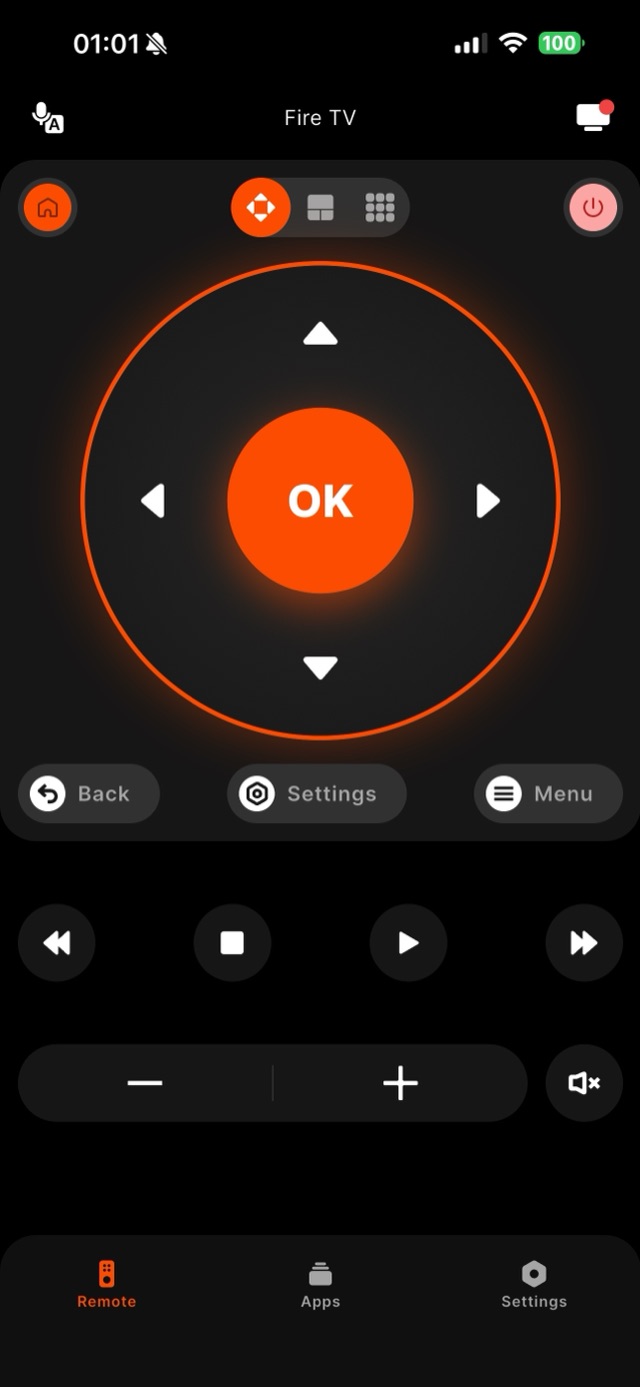
To connect a Firestick to Wi-Fi, open Settings, then Network, choose your Wi-Fi name and enter the password. Without the remote the same menu is still reachable from a phone, but only while the Fire TV sits on a network the phone can join too — a Fire TV that is fully offline needs the hotspot bridge or an Ethernet adapter described below first. Current Sticks and Cubes are dual-band, and it is worth choosing the 5 GHz version of your network when both appear: behind a TV, the crowded 2.4 GHz band is where most buffering complaints live. Hotel and dorm networks add a wrinkle — many require a browser sign-in page the Fire TV cannot always display, so a personal phone hotspot is often the more reliable travel setup. The catch appears when you need to change networks but the remote is missing: navigating that Settings menu normally needs a remote. There are two honest ways out. If your phone and the Fire TV are currently on the same Wi-Fi, Remote for Fire TV can drive the on-screen menus for you — including opening Settings and Network — so you can update or re-enter Wi-Fi details from your phone. If the Fire TV is fully offline (a moved apartment, a renamed router), use the hotspot bridge: set a phone’s hotspot to the exact name and password of the old network, and the Fire TV rejoins it automatically as if the router had come back — a second phone on that hotspot can then run the app and walk the device into the real new network. Wired is the third path: the Cube has a built-in Ethernet connector and Amazon sells an Ethernet adapter for Sticks, which skips Wi-Fi entirely. One honest limitation stays: the app and the Fire TV must share a network to talk, so a completely offline Fire TV still needs one of these bridges first.
How it works
Works with your Fire TV over Wi-Fi.
Remote for Fire TV connects to your Fire TV over your home Wi-Fi. The first time, you enter a four-digit code shown on the TV — after that it reconnects on its own. No account, and everything stays on your local network.
- Connection
- Your home Wi-Fi
- Pairing
- One-time 4-digit code shown on the TV
- Account
- Not required
- Privacy
- Remote control stays on your local network
- Works with
- Fire TV Stick, Fire TV Stick 4K & 4K Max, Fire TV Cube, and Fire TV built-in Smart TVs (Toshiba, Insignia, Pioneer)
Step by step
How to fix it: Connect Firestick to Wi-Fi.
Each step takes seconds. No account needed — most take nothing more than your phone and the code shown on the TV.
-
Open Settings on the Fire TV
From the Fire TV home screen, scroll to Settings, then choose Network to see the list of available Wi-Fi networks.
-
Pick your network and enter the password
Select your Wi-Fi name and type the password. The Fire TV confirms once it is connected, and streaming apps come back online.
-
Match your phone to that network
Connect your phone to the same Wi-Fi so Remote for Fire TV can reach the Fire TV. Pair once with the four-digit code shown on the TV.
-
Change Wi-Fi later from the app
If you switch routers, use the app to open Settings and Network on screen and re-enter details — as long as the app and TV still share the current network.
Common questions
Connect Firestick to Wi-Fi — your questions answered.
How do I connect my Firestick to Wi-Fi for the first time?
Can I change the Firestick's Wi-Fi without the remote?
What if my Fire TV is completely offline?
Why won't my Fire TV get past a hotel or campus sign-in page?
Should my Fire TV be on the 2.4 GHz or the 5 GHz network?
Free download
Take control of your Fire TV in seconds.
Remote for Fire TV replaces the remote over Wi-Fi the moment your phone joins the same network. Enter the one-time code shown on your TV and you are in — no account, no original remote needed.


An independent app by Auxility, Inc. Not affiliated with, endorsed by, or sponsored by Amazon. Amazon, Fire TV and Firestick are trademarks of Amazon.com, Inc., used only to indicate device compatibility.
Keep exploring
Other Fire TV Troubleshooting Guides
- Lost Firestick Remote lost firestick remote
- Fire TV Remote Not Working fire tv remote not working
- Firestick Remote Replacement fire tv remote replacement
- Fire TV Remote App for iPhone fire tv remote app iphone
- Fire TV Remote App for Android fire tv remote app android
- Pair a Firestick Remote pair firestick remote
- Firestick Remote Blinking firestick remote blinking
- Fire TV Volume Not Working fire tv volume not working
- Free Fire TV Remote App free fire tv remote app